
Here I have listed, a few audio-video encoders. Using these encoders, you can convert your audio and video files between various formats.
Some most popular formats supported by these encoders are, mp3, aac, aac+, eaac+, wmv, 3gp, avi, mpeg, etc.,
Compress your audio and video files in your computer to small sizes with best quality, to be played in your mobile phone.
Personally, I feel that, 'Mediacoder' is the best application among these. It supports a lot of formats, and the compressed files are of best quality.
The file, PocketDivX encoder doesn't need setup in your computer. After downloading, you can directly open the application, and start converting your media files to the preferred format.
It is better to compress your music files to "aac+" format, rather than using mp3 format. aac+ format music files have the best quality, similar to mp3 files, and are of very small size. If you use aac+ format to store music files in your mobile phone, you can store more than 1500 songs in a 2GB card.
Below are a list of audio-video encoders. Download and use any encoder you wish. (Personally, I feel its better to use MediaCoder).
Click here to download MediaCoder. Click here to know more about MediaCoder.
Click here to download PocketDivX encoder.
Click here to download SmartMovie Converter.
Sunday, December 23, 2007
Audio-Video encoders - Convert your audio and video files between various formats
Saturday, December 22, 2007
Signing symbian applications
Most of the applications available in this website and other sites, must be signed by yourself, before you install them to your mobile. Without signing, you cannot install the applications.
What is signing?
Signing is a process, which ensures that the application is free from viruses,etc., and safe for use. A site called http://www.symbiansigned.com/ ensures that, all symbian applications are safe to use in mobile phones. The term 'signing' actually refers to issuing a certificate, which guarantees that the application is safe to use.
What is the need of signing?
When an application is cracked to make it as a free application, the original certificate which comes along with the application is removed. So, before you install the application in your mobile, you must sign the application by yourself.
Why can't you sign the application for me?
Applications signed after cracking, are IMEI specific. That is, during signing, one must enter the IMEI number of their mobile, to get that application signed. So, I can't sign your applications, unless I know your IMEI number.
Can I sign applications on my own? Is it easy?
YES ! Signing applications for your mobile is very easy. If you give me your phone's IMEI number, I can sign applications for you. But, once you learn this process by yourself, you don't need any help, and you can sign any application you want on your own.
How to sign symbian applications for my mobile?
Just follow the below steps correctly, to sign applications on your own:
1) Log onto http://www.coolhotmail.com/ and get yourself a unique mail ID. ( You can't use your Yahoo, Gmail, Rediff mail accounts to sign applications)
2) Go to http://www.symbiansigned.com/ and click 'Register now'. In the next screen, enter your unique mail ID you created in the above step. Fill the form and complete all those formalities and get a symbiansigned account.
3) You need certain tools to sign applications for your mobile. Click here to get those tools. Unzip the contents of that file, and install the file "DevCertRequest_2.1.exe" in your computer. Copy the remaining four files into a new folder.
4) Now, copy the application you want to sign to the folder, where you have copied the above said four files.
5) Now, open the file which you have installed, as said above in step 3.
6) Click the explore button(button with 3 dots). Browse to the folder where you have copied the files, as said above in steps 3 and 4. Now, remove the star in filename field, and replace it with any file name you wish, with the extenseion .csr ( For example, abc.csr) 7) Click next. Select 'No' in the next page.
8) In the field for private key file, browse to the folder where you have copied the files as said in steps 3 nd 4. Select the 'sultan.key' file.
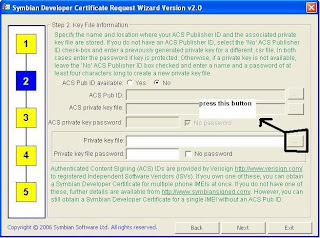 9) Enter '0123456' in the field for private key file password, and click next.
10) In the next page, enter any information and proceed to the next page by clicking next.
11) Enter the IMEI number of your mobile in the next page. To know your IMEI number, enter '*#06#' in your mobile.
12) Select all the entities in left field, select add and click next.
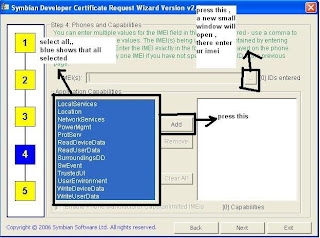 13) Click finish again, and the '*.csr' file is available in the folder you specified earlier. ( Where '*' refers to the file name you entered in the first page of this software)
14) Now, sign into into http://www.symbiansigned.com/. Click the 'My Symbian Signed' tab. Now, click the 'Developer certificates' and then, 'Request' link in the left sidebar.
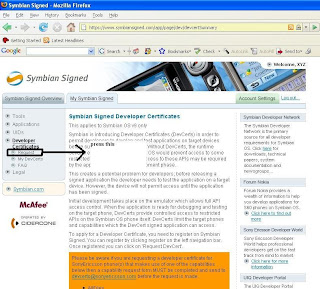 15) Upload the '*.csr' file you created. After uploading, click the download option, to download the certificate you requested for your mobile. Download the certificate file to the folder, where you have all those files, as described in step 3 and 4.
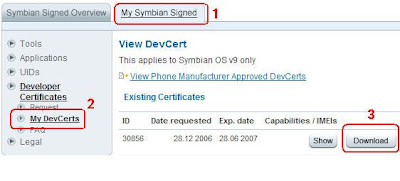 16) Now, open 'SignSiS.exe' in the folder. In the 'select sis file' field, browse to the file, which you want to sign. In the 'select certificate file' field, browse to the certificate file, which you have just downloaded. In the 'select key file' field, browse to 'sultan.key'. Enter '0123456' as password, and click 'Sign it'.
17) Now the application you wished for installtion, is signed. Install the signed application and have fun !
If you have any doubts about signing, mail me at mys60v3@thatswhoiam.in


